

QR Codes are versatile tools that allow you to bridge the gap between the physical and digital worlds. They are convenient for users since you can easily include them in emails, SMS messages, flyers, and the like, and they are accessible for customers since they are easily scanned with a phone or tablet camera.
How to Create a QR Code
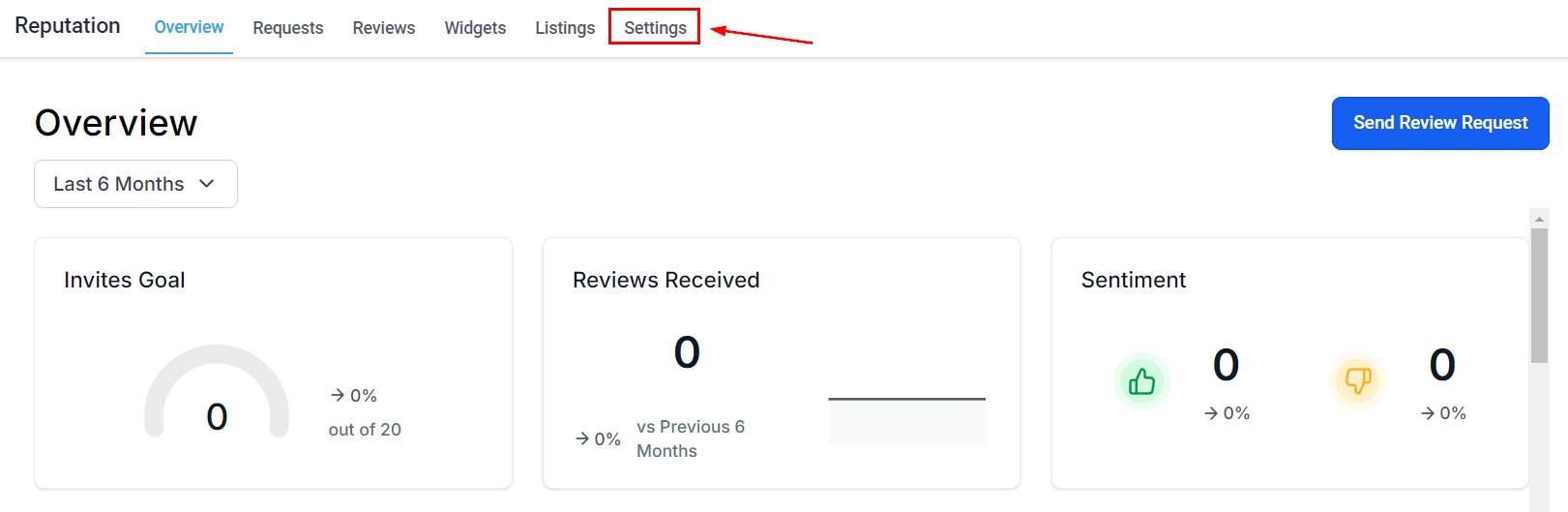
Navigate to the Reputation section in your left sidebar and access the Settings tab.
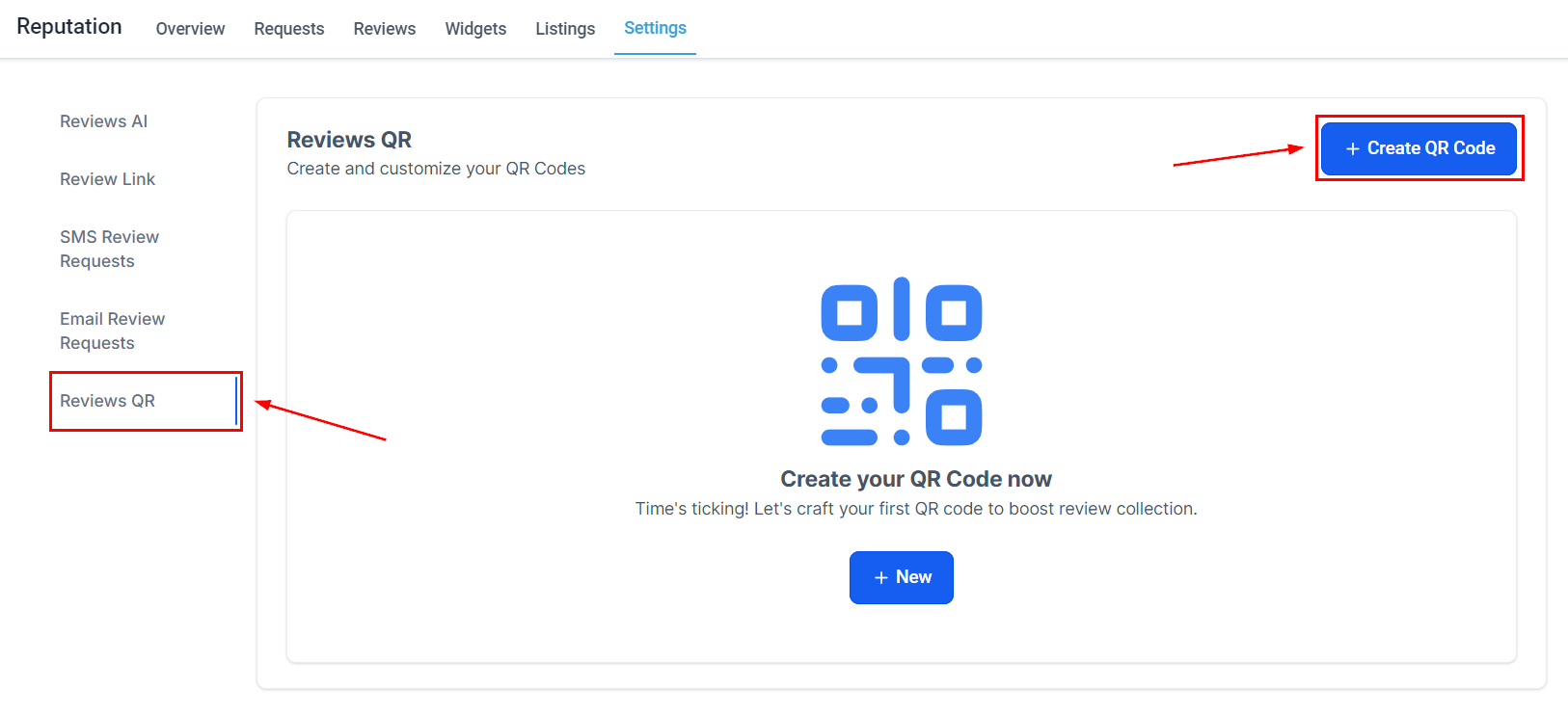
Select the Review QR tab then click + Create a QR Code to generate it.
Customize the QR to your liking then click save.

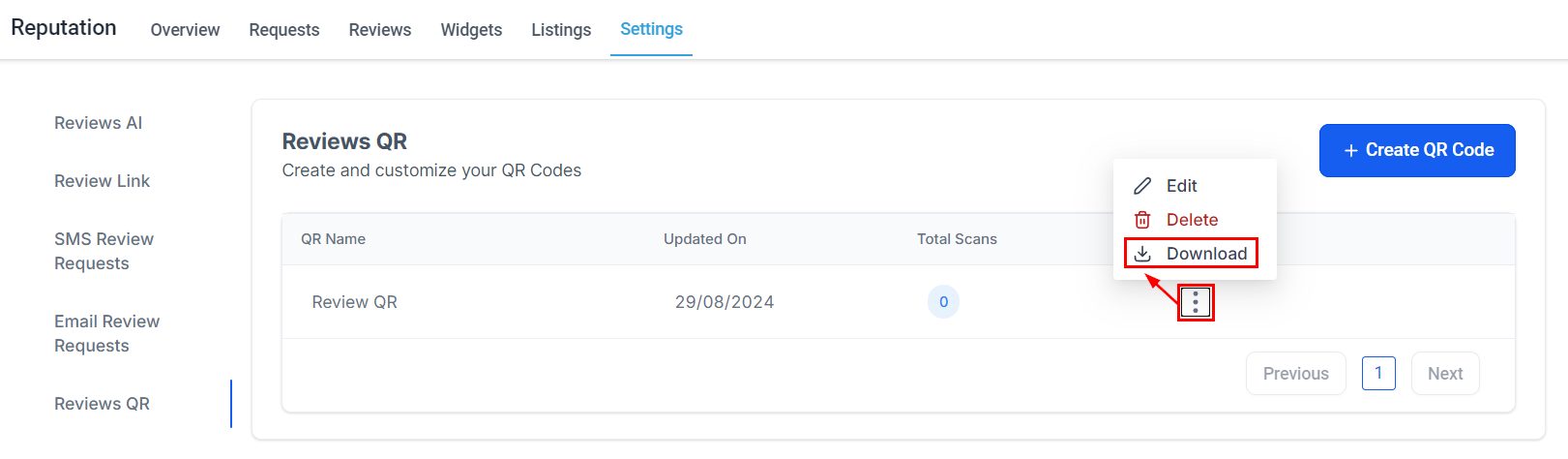
Click the three-dot icon to download a PDF version of your QR Code.
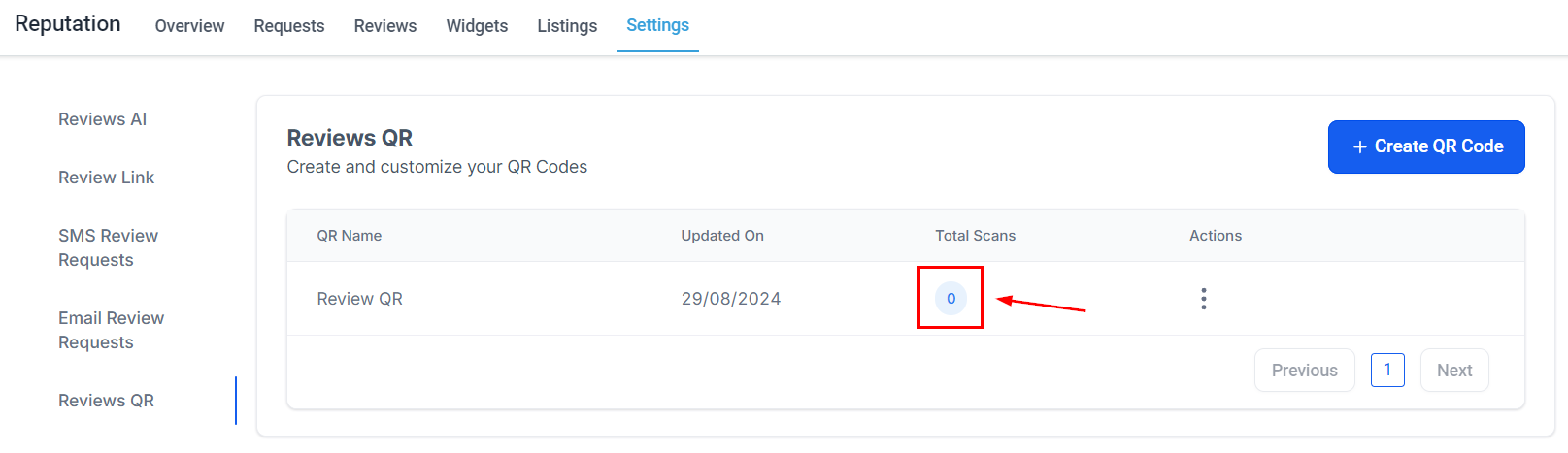
Once you start sharing and using the QR code, you can track the number of scans in real time.
And there you go! Now you can enhance your reputation management, encouraging your clients to leave reviews, and helping you be more versatile with your marketing resulting in a stronger brand presence.
19/3/25 Ext