

Simplify your email marketing process with the Code Builder, a powerful tool designed to import your existing email templates from various platforms effortlessly. Whether you’re looking to consolidate your favorite templates or avoid the repetitive task of creating new ones, this feature allows you to manage all your email campaigns within a single, unified platform while leveraging your high-performing designs.
Key Benefits
Time Efficiency: Eliminate the need to manually recreate templates, saving you valuable time and effort.
Centralized Management: Manage all your email campaigns from one centralized platform for a streamlined and organized workflow.
Optimal Performance: Leverage your top-performing templates to ensure consistent and effective email marketing.
Importing Templates
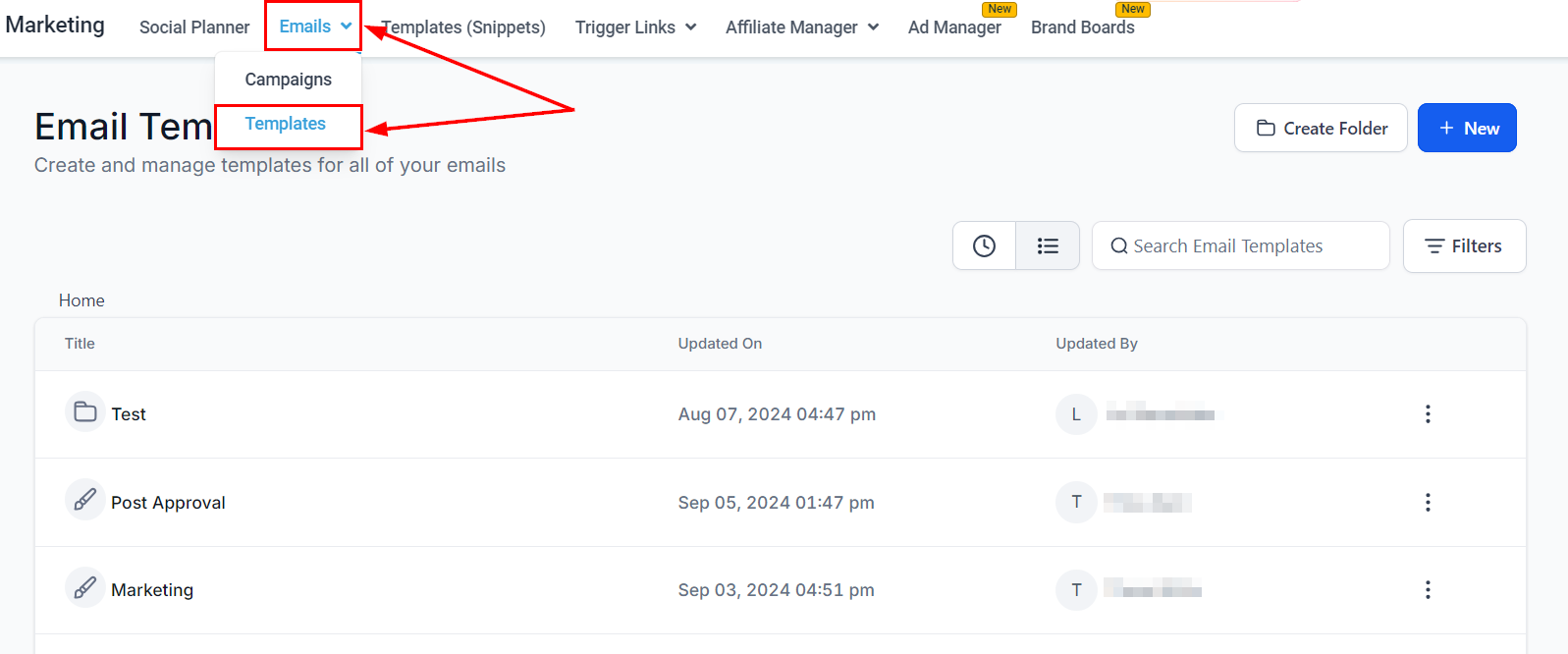
Navigate to the Templates section within the Email Marketing tab to begin.
Start a New Template
Click on the “+ New” button to begin creating a new template. From the dropdown menu, select "Blank Template" from the available options.

Choose the Editor
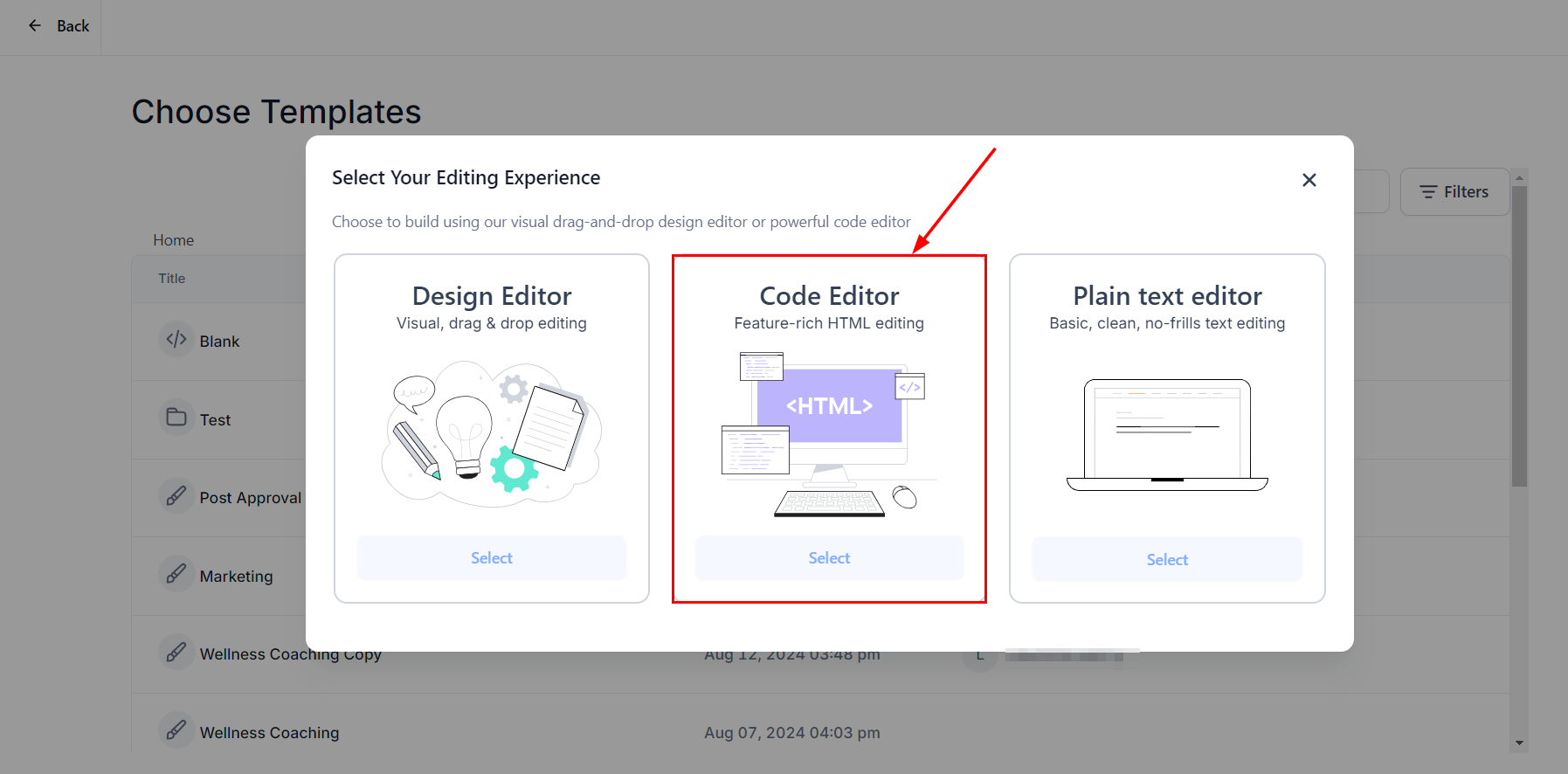
A popup window will appear, giving you the option to select between "Design Editor" (drag-and-drop builder), "Code Editor" (HTML builder), and “Plain Text Editor”. Choose the "Code Editor."

Paste Your HTML Code
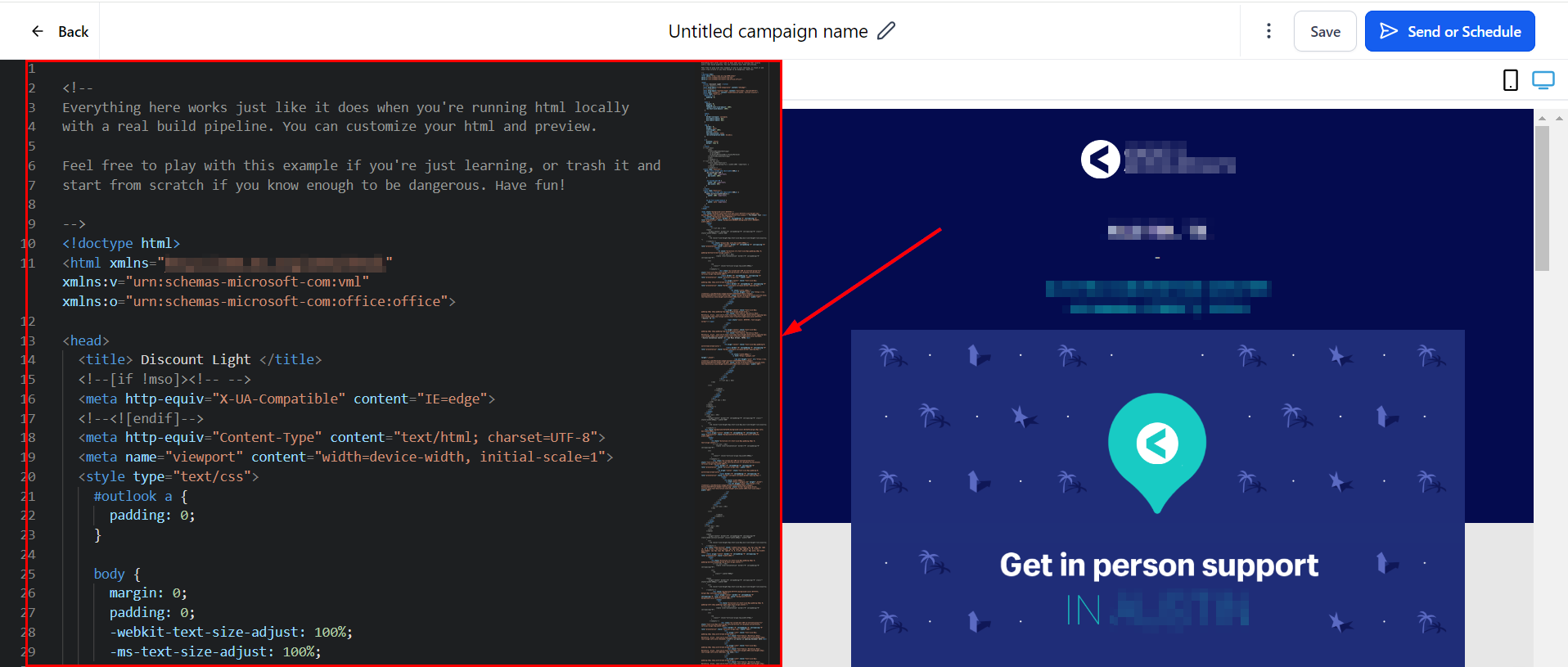
In the Code Editor, paste your HTML code into the designated area to preview your template.

Remember to save your template after making any adjustments!
Importing Campaigns
Begin by navigating to the Email Campaigns section within the Marketing section of your account.

Start a New Campaign
Click on the “New” button to initiate a new campaign.

Choose a Blank Campaign
On the template selection screen, choose "Blank" to proceed.

Select the Code Editor
A popup window will appear, giving you the option to select between "Design Editor" (drag-and-drop builder), "Code Editor" (HTML builder), and “Plain Text Editor”. Choose the "Code Editor."
Insert Your HTML Code
Once the Code Editor is open, paste your HTML code into the editor area to preview your campaign.
Remember to save your email campaign after making any adjustments!
By leveraging the HTML Email Builder, you can optimize your email marketing efforts with greater efficiency and consistency. Start making the most of your email campaigns today!
18/9/24 Ext