

Your phone number is more than a direct line to your company, it is a memorable part of your brand. It can help establish a stronger brand image and reassure your customers that they are in good hands. In your CRM, you can find the Phone Numbers section dedicated to helping you acquire and manage phone numbers specifically for your business communication needs. These acquired numbers can be utilized for various purposes, such as making calls, sending text messages, or monitoring and tracking communication activities.
Manage Numbers
This is the tab where you can purchase and manage your Phone Numbers, Number Pools, and Verified Caller IDs.

Adding a Phone Number
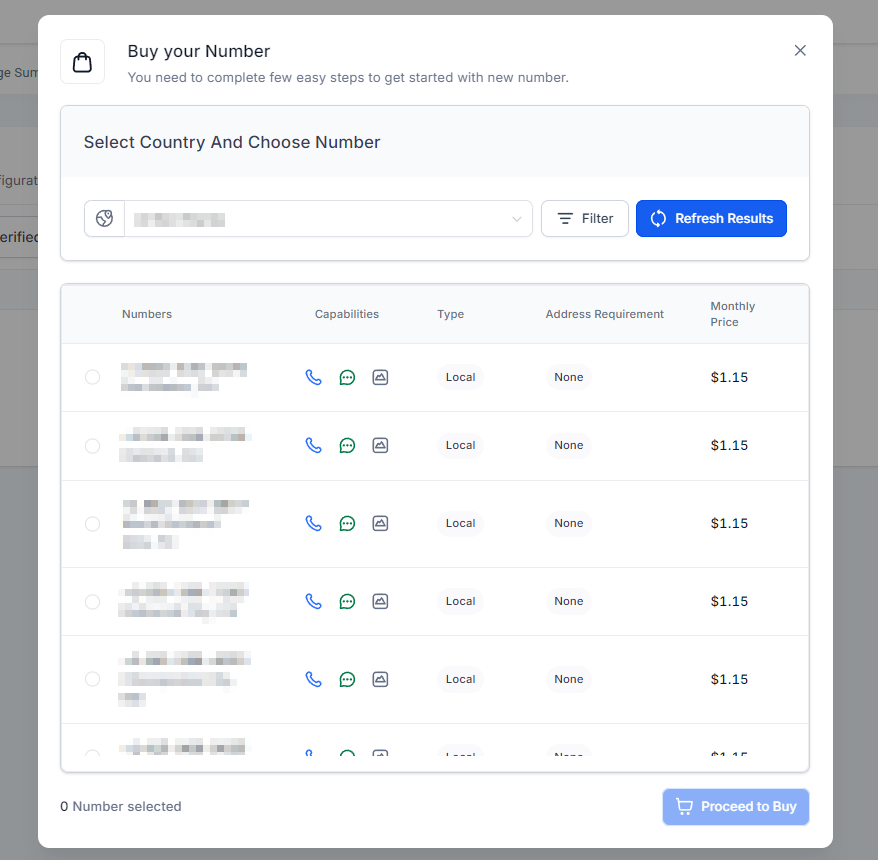
Click on the + Add number and then select Add a Phone Number to purchase a new number.

This will open a pop-up window for you to select a number, which you can filter to your particular needs.
Phone Number Options
By clicking the three dots icon next to the phone number, you can access the configuration options, which will be:
Number Info: This allows you to see the phone number details.
Set as Default number: To change the phone number used to call and SMS by default.
Edit Configuration: These are the settings for how it works, such as the forwarding number.
Add to Existing Number Pool: Includes the number in a number pool you have already created.
Delete Number: This will remove the phone number from our list.

Regulatory Bundle / Address
Here's where you can handle your phone number registration for users outside the United States or Canada.

New bundles can be added by clicking the “Create” button, then selecting the bundle type and filling out the required information.

Clicking the three dots beside the associated bundle gives you options to view or edit its details or delete it. If the status is “Validated”, the Edit option will not appear.

Trust Center
Here's where you can handle your phone number registrations for users inside the United States or Canada. The Trust Center also provides products that improve brand recognition, such as your caller ID.

Messaging Analytics
This section provides additional data and insight into the success of your SMS messages and campaigns.

Apply filters by date or source to refine the display.

Advanced Settings
The advanced settings allow you to modify how your phone number works.

Number Intelligence
Here, you can manage Number Intelligence, which checks a number's validity before sending the first SMS, detects incoming spam calls, and looks up the names of unknown callers before answering the phone.

Voice Calls
In this tab, you can manage Voice Intelligence, which transcribes calls for you, the Inbound and Outbound Call settings, and how the system stores your Call Recordings.

Voicemail & Missed Call Textback
Within this section, you can manage the voicemail message your contacts hear when calling in, the automatic missed call text back, and their settings.

SMS Compliance
To customize the SMS Customizations and Opt-out texts, you can navigate to this window.

Messaging Limit
Here, you can view your messaging use and the total number of messages you can send within a monthly cycle.

Restriction History
Within the Restriction History tab, you can review any issues or restrictions your messages have encountered over the selected period.

Call Scripts
In this section, you can view, edit, and add call scripts for your workers to use during customer interactions.

VoIP Deskphone (SIP)
This section allows you to view and set up SIP-compatible hard phones for your sub-account. Once configured, you can then click the Manage Users button to add new devices or update the password or assigned user of a VoIP Deskphone before saving.

By effectively managing your phone numbers and leveraging the available tools, you can enhance your communication strategy, build stronger customer connections, and present a more professional and trustworthy brand image. Explore these features to get the most out of your business phone system and ensure seamless, reliable interactions with your audience.
4/7/25 Ext