

Changing a business with an established phone number can be challenging since it’s integral to the brand, familiar to clients, and featured in promotional materials. However, a CRM-connected phone number offers significant advantages, such as tracking and logging calls with the Log External Call action. Connecting your phone system via a webhook allows you to retain your existing number while seamlessly managing calls within your CRM.
How to Set It Up?
Head to the ”Workflows” Tab inside the ”Automation” section and ”Create a New Workflow”.

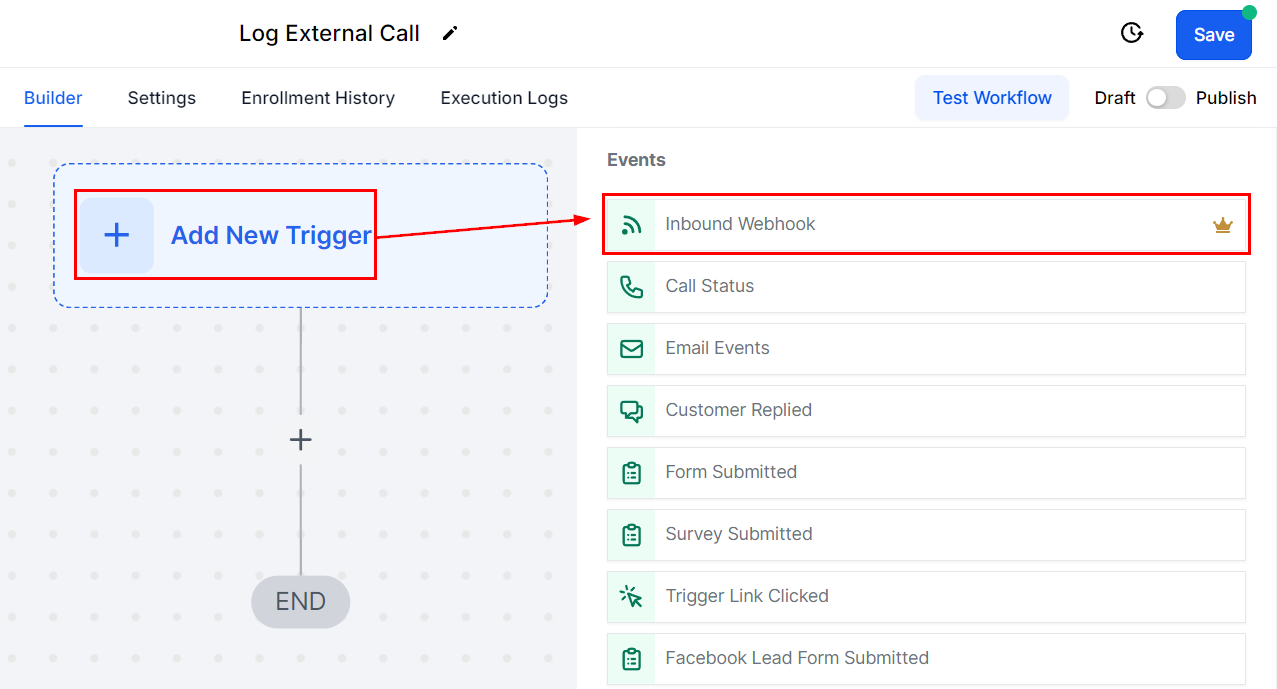
Click “Add New Trigger” search and select ”Inbound Webhook”.
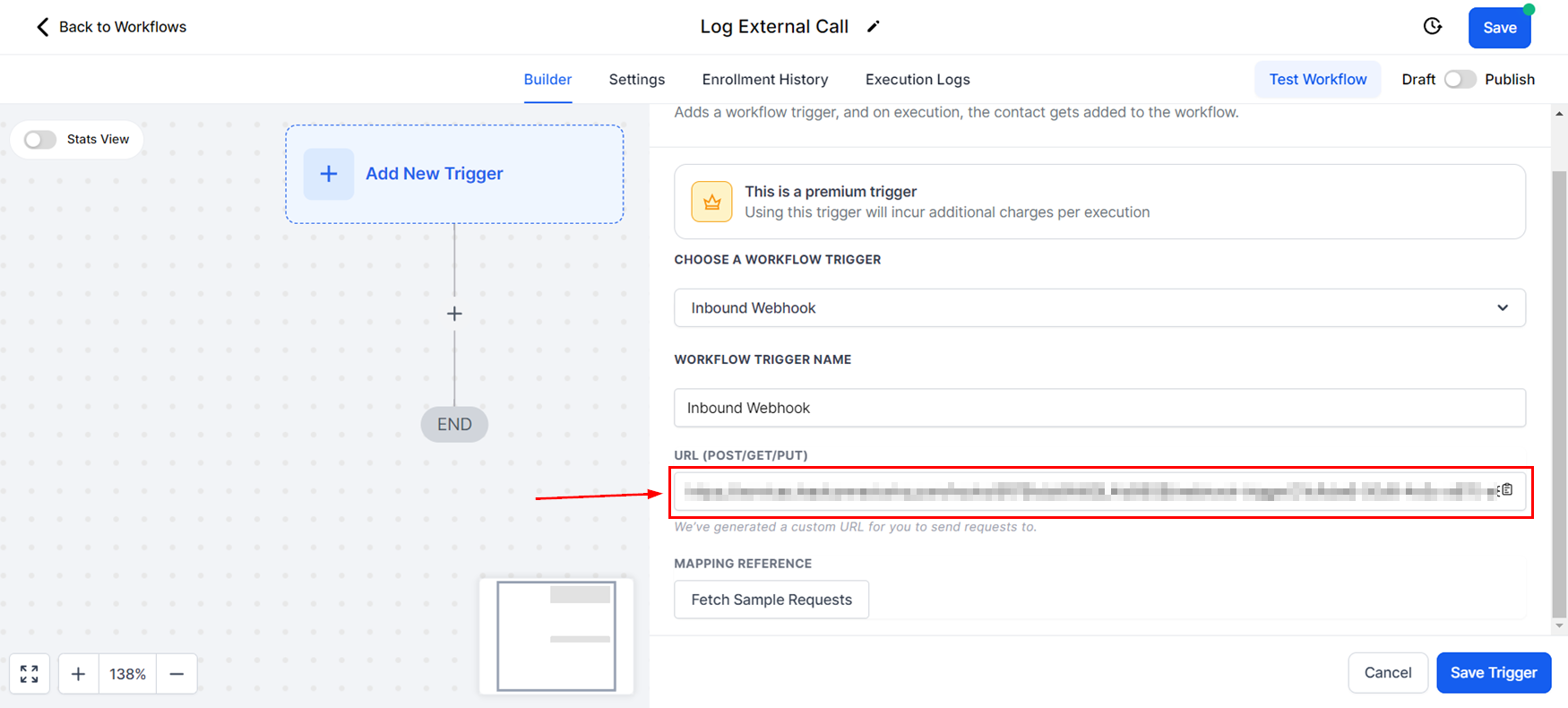
Copy the link for your Webhook and add it to your phone provider, once you do click ”Fetch Sample Requests” this will give you options to select so you can establish the connection.
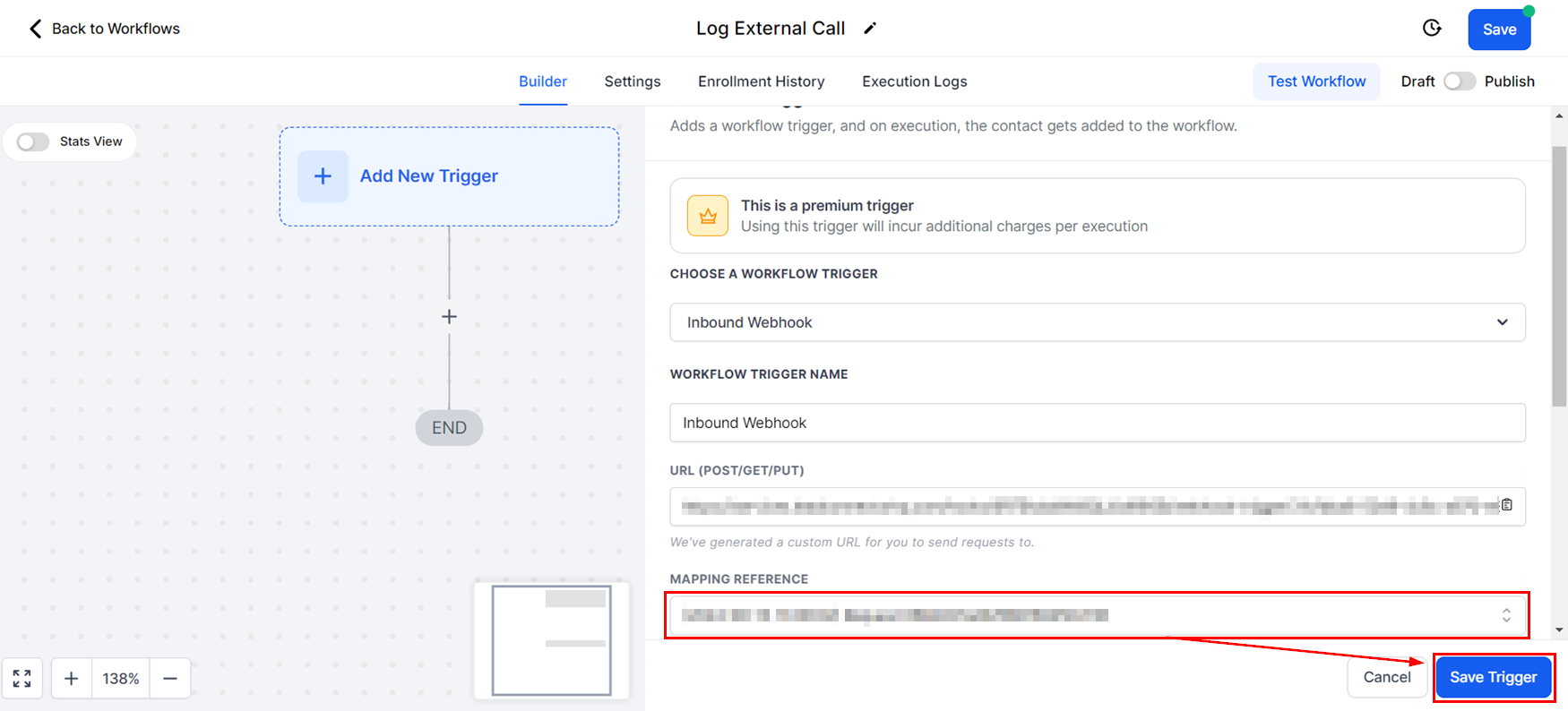
After selecting the payload ”Save” the trigger.
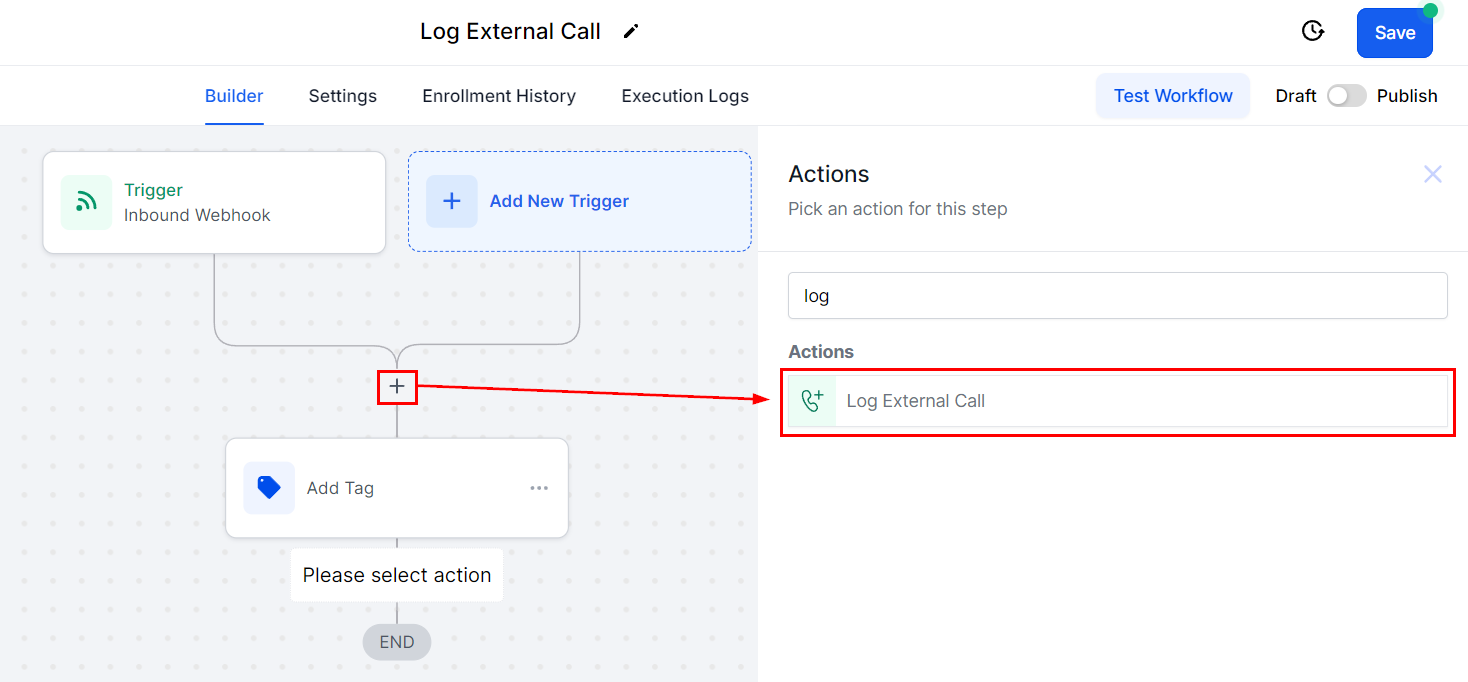
Click the “+” sign to add the action "Log External Call".
Set the direction for the call (Inbound for incoming, outbound for outgoing), and use custom values to set the rest of the details, such as the contact number.
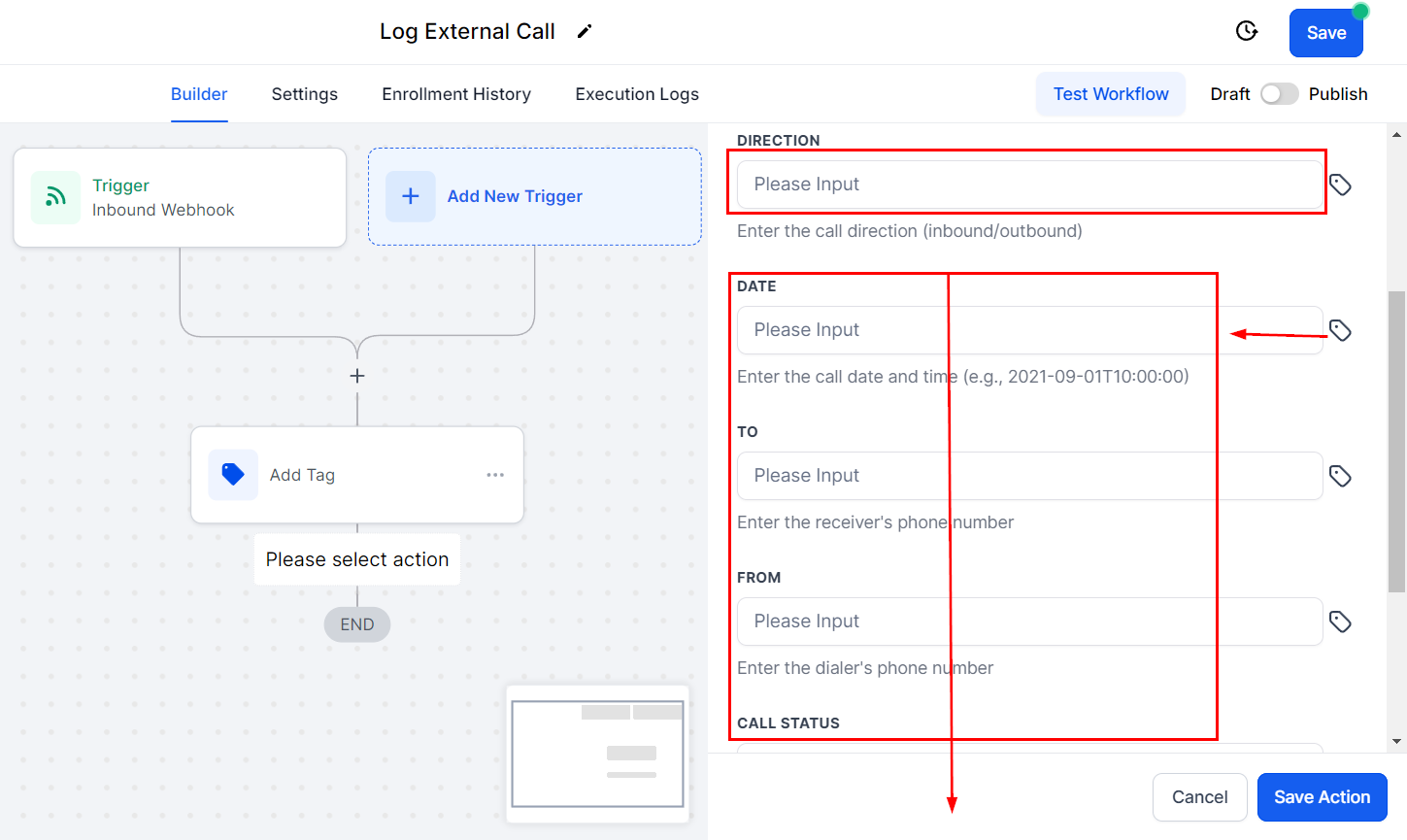
Save the Action, add any additional workflow steps, and then save the entire workflow.
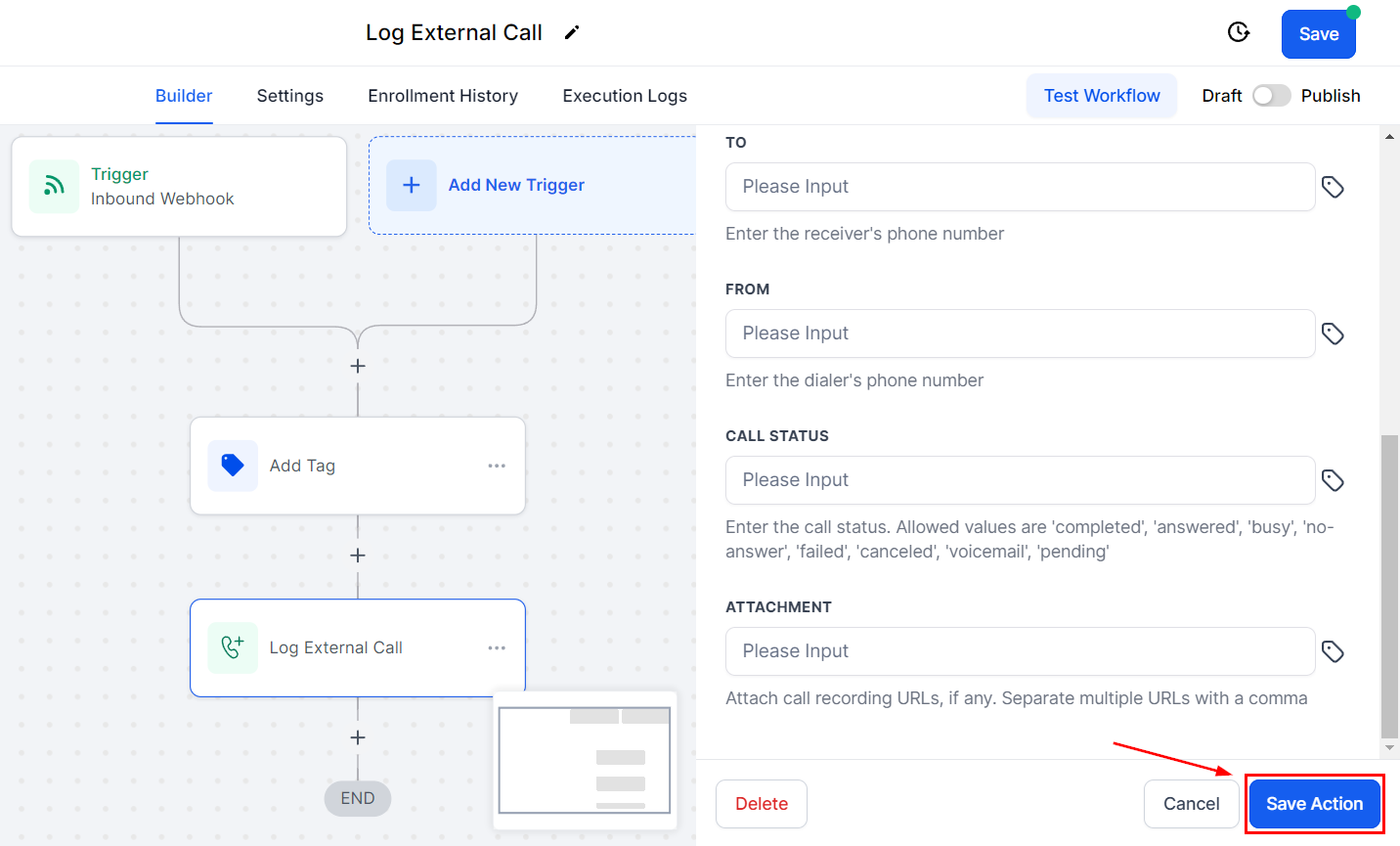
Publish and Save the Workflow and you're done. Once the setup is complete, calls will appear in the Conversations section under the respective contact. This allows you to maintain a comprehensive record of all interactions without requiring your clients to adapt to a new phone number.

With the Log External Call action, you can keep a thorough record of any calls you have with your customers even if using a phone number you have externally from the system. No need to confuse your clients with number changes while ensuring no interaction goes missing and all information is handy whenever needed.
27/12/24 Ext